How to Scan Receipts into Excel: 3 Easy Methods (2026 Guide)
You can scan receipts into Excel in three ways: (1) manually record key fields (date, vendor, category, tax, total) in a template, (2) use Excel Mobile’s “Data from Picture” to convert a receipt photo into a table, or (3) use a receipt-scanning tool like Foreceipt to auto-extract fields and export a clean .xlsx report
How do you scan receipts into Excel manually?
You scan receipts into Excel manually by entering each receipt’s date, vendor, category, subtotal, tax, and total into a consistent spreadsheet template.
Method 1: Manual Recording (The “Original” Way)
When this method is best: Use manual entry when you have a low volume of receipts or need full control over categories and formatting.
Steps
- Create columns: Date, Vendor, Category, Subtotal, Tax, Total, Payment Method, Notes.
- Enter each receipt line-by-line.
- Review for missing tax and inconsistent vendor names.
- Save monthly files and keep photo backups for audit proof.
Common mistakes to avoid: Mixing categories, inconsistent vendor names (e.g., “Starbucks” vs “Starbucks Coffee”), forgetting tax fields.
How do you scan receipts into Excel using Excel “Data from Picture”?
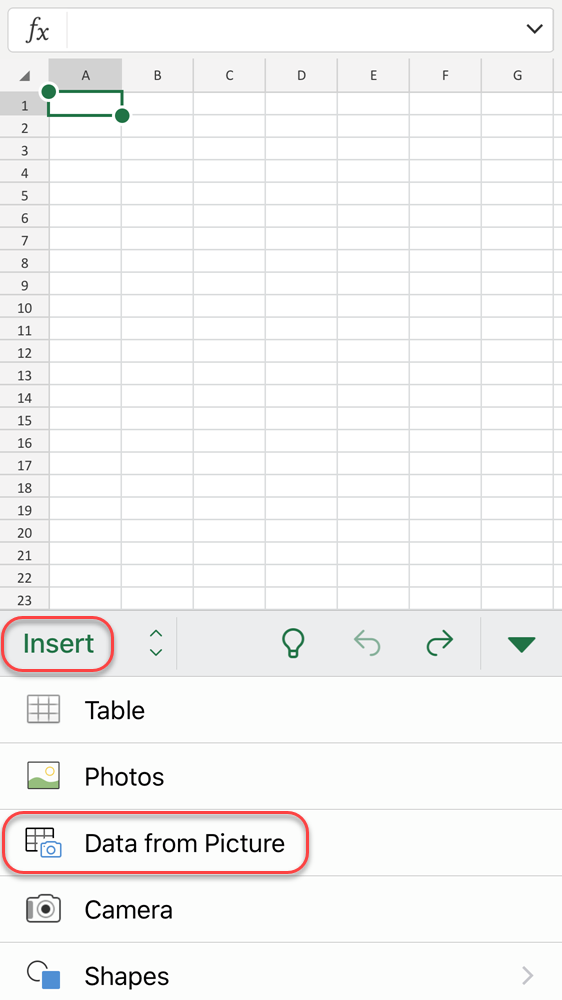
You scan receipts into Excel using “Data from Picture” by taking a clear photo in Excel Mobile, letting Excel extract a table, and then correcting any flagged fields before inserting it into your sheet.
Method 2: Use Excel’s Built-in “Data from Picture” Feature
When this method is best: Use this when your receipts are clean and you want faster entry without a separate tool.
Steps
- Open Excel Mobile and choose “Insert Data from Picture”.
- Take a straight, well-lit photo of the receipt.
- Review extracted values and fix any highlighted errors.
- Insert the table and map it into your template columns.
Common mistakes to avoid: Cropped photos, tilted angles, low lighting, and assuming the extracted table matches your template.
How do you automatically scan receipts and export them to Excel?
You automatically scan receipts and export them to Excel by using a receipt scanner that extracts key fields (date, vendor, tax, total), organizes them by category, and generates an .xlsx report you can download and share for bookkeeping or tax filing.
Method 3: Foreceipt (Fully Automated)
When this method is best: Use this when you have high receipt volume, want consistent categorization, and need a tax-ready report quickly.
Steps
- Upload or scan receipts in bulk.
- Confirm key extracted fields (date, vendor, amount, tax).
- Assign categories if needed.
- Export a formatted Excel report.
Common mistakes to avoid: Not reviewing edge_toggle receipts (faded ink, handwritten receipts), and leaving categories unstandardized.
Which provides more benefit for expense tracking: Excel spreadsheets or Foreceipt?
The choice between Excel and a receipt scanner app depends on volume: manual Excel entry is suitable for businesses with fewer than five receipts per month, while an automated app like Foreceipt is superior for those needing to save time, reduce human error, and maintain digital copies of receipts for audit protection.
If you’re a freelancer or small business owner, chances are you’ve used Excel to track expenses. Excel is familiar and gets the basic job done. But let’s be honest, manually entering every expense is tedious and time-consuming. Think about those evenings wasted updating cells, double-checking formulas, and sorting columns. Is that really the best use of your time? Probably not. There’s a better way to track expenses. With Foreceipt, an AI-powered receipt scanner app, you can simply snap photos of your receipts and let the app handle the rest. It sounds almost too easy, but that’s exactly why Excel Isn’t Ideal for tracking expenses
Excel is a powerful tool, but manual expense tracking isn’t its strong suit. Here are a few ways Excel spreadsheets might be holding you back:
- Manual data entry eats up time: Every expense must be typed in by hand (date, vendor, amount, category). All that data entry can eat up hours that you could spend growing your business.
- Prone to errors: One mistyped number or formula error can throw off your totals. It’s easy to overlook a receipt or mis-sum a column, especially when you’re tired. Small spreadsheet mistakes lead to messy records and headaches down the line.
- Receipts easily lost: Excel can log numbers, but it can’t attach the actual receipt image to each entry. You’re still juggling piles of paper receipts or scattered email invoices separately.
- Tax-time hassles: Excel isn’t tax-friendly out of the box. You have to set up your own categories and ensure they align with tax-filing requirements. Come tax season, you might find yourself reorganizing data to fit what your accountant needs.
In short, while Excel is great for many tasks, using it to track expenses means tedious work and avoidable mistakes. Wouldn’t it be nice to eliminate those pain points altogether?
How can you simplify receipt tracking and expense management with Foreceipt?
You can simplify receipt tracking by using an automated app like Foreceipt to digitize paper records, extract data with AI, and sync expenses across mobile and web platforms for instant reporting. This transition from manual spreadsheets to a digital system eliminates data entry and ensures your financial records are always organized and backed up in the cloud.
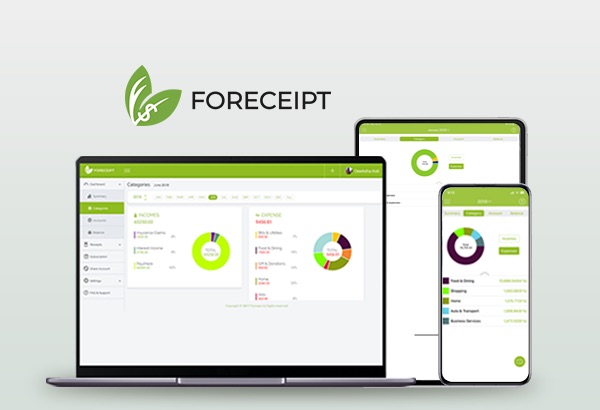
Foreceipt is a mobile and web-based expense tracking app designed to make receipt management effortless. Think of it as a personal bookkeeper in your pocket: snap a receipt, and the app handles the rest. With over 500,000 users worldwide—freelancers, contractors, and small business owners—it’s a trusted, reliable tool for staying organized. Here is how Foreceipt transforms your workflow:
1. Automated Receipt Scanning (No More Manual Entry)
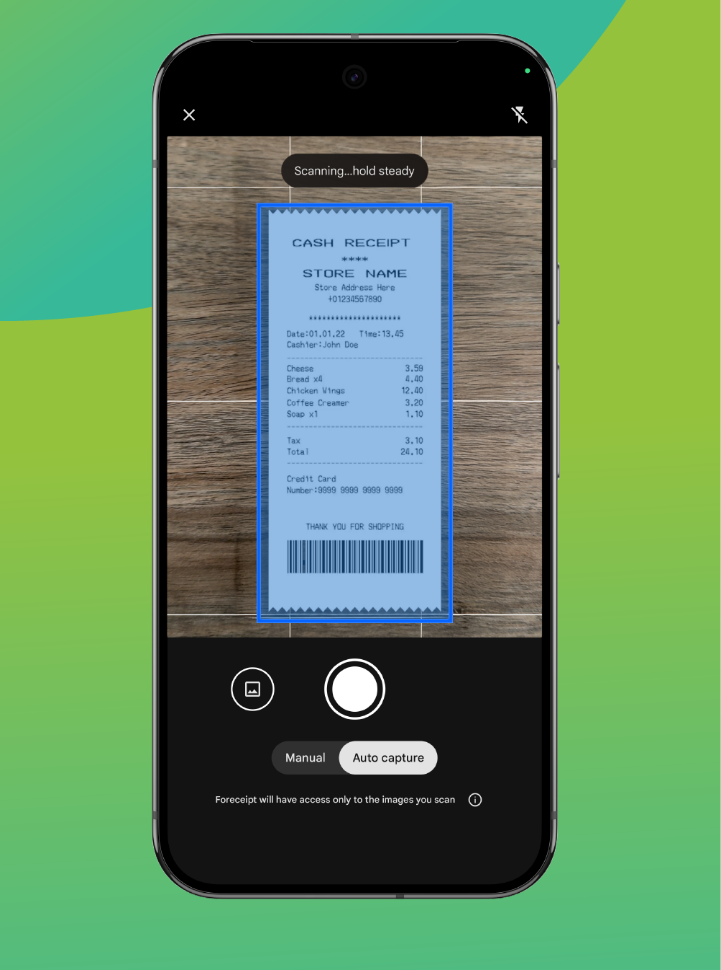
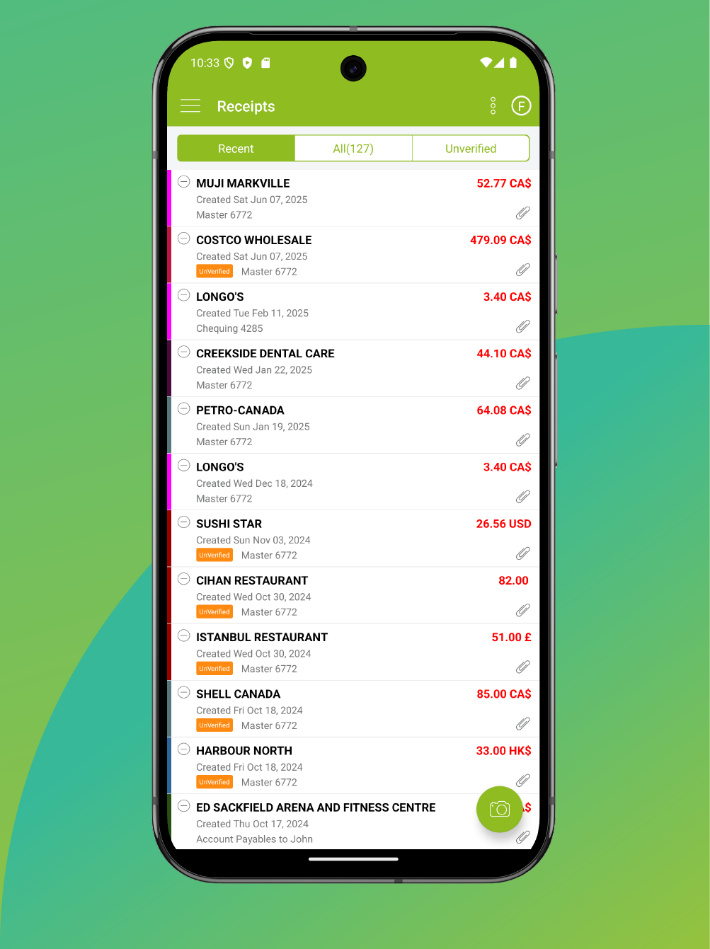
Foreceipt eliminates data entry. Just snap a photo of any paper receipt or forward an email receipt. The app automatically extracts key details like vendor, date, amount, and taxes with up to 99% accuracy.
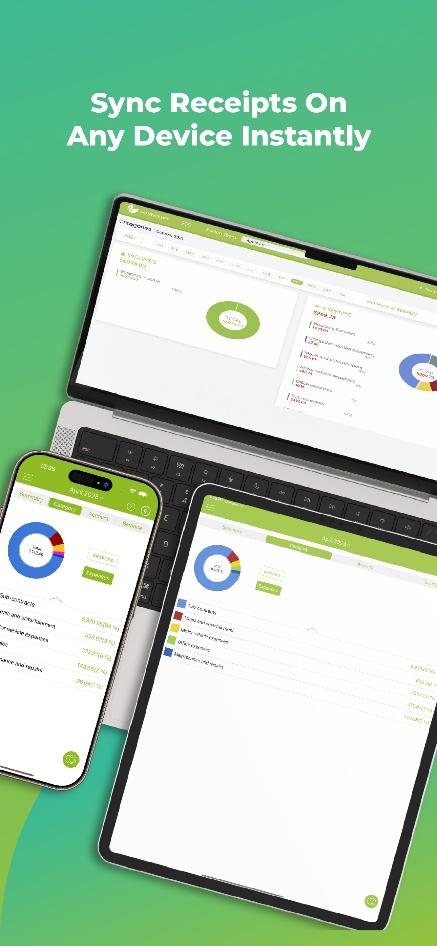
Your receipts and expense data sync instantly across devices and are securely stored in the cloud, so you never have to worry about losing information or dealing with outdated spreadsheets.
2. Smart Categorization with AI
Once the receipt is scanned, Foreceipt’s AI automatically categorizes the expense based on vendor and transaction type. It uses IRS- and CRA-friendly categories by default, making tax preparation far easier. You can adjust categories anytime, but most entries are accurate without manual edits.
3. Instant Tax-Ready Reports
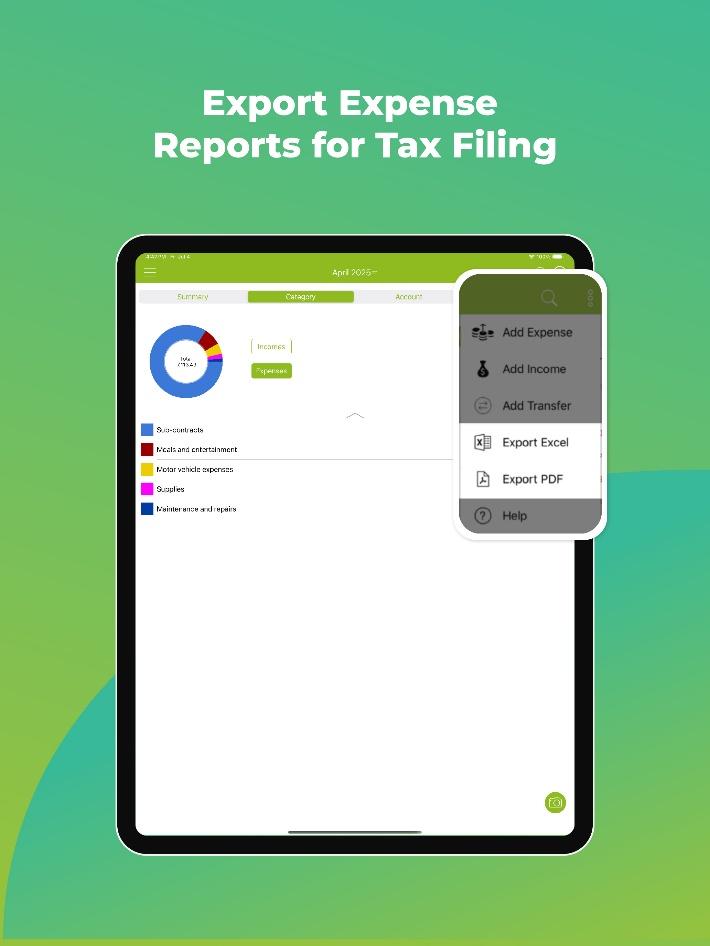
Foreceipt can produce clean, comprehensive reports in one click—no sorting, formulas, or pivot tables required. Export reports in Excel or PDF for budgeting, reviews, or handing off to your accountant. Every entry is backed by a digital receipt, giving you audit-ready documentation without paper clutter.
Additional Benefits
- Cloud sync: Access your data anytime on mobile or web; everything stays backed up automatically.
- Multi-platform access: Works on iOS, Android, and desktop browsers.
- Imports & integrations: Import bank statements (PDF/CSV) or sync with QuickBooks Online.
- Digital receipt archive: Every receipt is stored, searchable, and linked to the corresponding expense—no more shoeboxes or fading printouts. You can also download your receipt images to your own laptop.
Compared to Excel’s manual work, Foreceipt gives you an all-in-one system for capturing, organizing, storing, and reporting expenses.
Check out our short tutorial videos on our “How It Works” page to see the app in action!
Conclusion: Switch to Stress-Free Expense Tracking
Foreceipt saves time, reduces errors, and keeps your records tax-ready year-round. Instead of spending hours typing into spreadsheets, you can scan a receipt in seconds and let Foreceipt automate the rest.
The app offers a free sign-up and basic plan, so you can try it risk-free. Once you experience automated, organized, paper-free expense tracking, it’s hard to go back to Excel.
FAQ
How do I record receipts in Excel manually?
To record manually, set up a table with tax-relevant headers like Date, Merchant, and Amount. We also provide you with a simple Excel Expense Tracking Template.
Can I scan multiple receipts into Excel at once?
Excel’s native “Data from Picture” tool only works one receipt at a time. To scan dozens of receipts at once, you need an automated tool like Foreceipt that supports batch processing and bulk export.
How does Foreceipt’s receipt scanner app work?
Foreceipt uses your smartphone camera and OCR/AI technology to scan receipts and extract key details automatically. Briefly, it takes a photo of a paper receipt (or forward a digital receipt via email), and then read the vendor, date, amount, and tax from the receipt for you. The data is categorized using AI and then saved to your account in the cloud and available on all your devices. In short, Foreceipt turns a pile of receipts into organized, digital records in seconds – no manual data entry needed.
Why use Foreceipt instead of Excel to track expenses?
Using Foreceipt is faster and more accurate than using Excel for expense tracking. With Excel, you have to enter everything by hand, which takes time and can lead to mistakes. Foreceipt will automate your expense tracking – it captures receipts with a quick scan and uses AI to categorize them instantly. This means you spend minutes tracking expenses instead of hours. Plus, Foreceipt provides features Excel can’t, like storing receipt images, syncing across devices, and generating tax-ready reports with one click.
Is Foreceipt free to use?
Foreceipt is free to try. You can scan up to 100 receipts for free to experience the product and see the value it provides. A subscription is required once you exceed the free limit.Furthermore, you can refer a friend after creating an account with us and you will receive additional 200 receipts for every successful referral.
Is my data safe with Foreceipt?
Absolutely. Foreceipt stores your receipt data securely in the cloud using modern encryption and backup practices. Your account is password-protected, and only you (and those you authorize) can access your data. The benefit of cloud storage is that you won’t lose your records if your phone or computer breaks – everything is backed up on Amazon Cloud. Foreceipt is using Amazon provided enterprise level infrastructure to protect your data and privacy. You can trust your financial information is in safe hands.
Can I use Foreceipt on my phone and computer?
Yes. Foreceipt is available as a mobile app for iOS and Android, and it also has a web application which offers a large screen for convenient receipt management and some advanced features. Your account syncs across both, so you can snap receipts with your phone while you’re out and then log in to the web app on your laptop later to review reports or edit details. This multi-platform access means you’re not tied to a single device (unlike an Excel file on one computer). Whether you’re at your desk or on the go, Foreceipt lets you track expenses seamlessly.